
How to test if your GA4 and Google Ads tracking is GDPR compliant
Why GDPR Compliance Matters
We all understand the importance of giving users a choice when it comes to data collection. Beyond ethical concerns, there are also fines issued for GDPR breaches in different countries already.
When it comes to Google Analytics 4 and Google Ads tracking, ensuring compliance means that no data should be collected before the user has given their consent.
Manual Testing Steps
Various settings can affect how Analytics and Marketing tags are synced with the Cookie Consent Banner you likely have on your website. Let’s see how to make sure that your GA4 and Google Ads tracking is GDPR compliant, even without knowing much about their implementation.
You can test this by manually opening your website and ensuring that
- No Tracking before interacting with the Cookie Consent Banner
- No Tracking if the user clicks Deny, or “gdpr-compliant” events only.
- Tracking is present if the user clicks Accept
Understanding Google Consent Mode
To make Google Tags GDPR compliant, Google Consent Mode parameters must reflect the user’s choice from the Cookie Banner displayed on site entry.
Did the user accept? Then we can set the Google Consent mode parameters to “granted”.
Did the user deny? We set the same parameters to “denied”.
We won’t cover implementation details, but conceptually, this is where you connect these signals from your Consent Banner with your consent mode parameters associated with your Google Tags.
What parameter to validate?
For GA4 and Google Ads, the gcs parameter is the easiest to look at. We need to make sure that it has the right string (G100, G101, G111) based on the user’s choices. G1XY, where X represents marketing parameters and Y analytics_storage
- G100 before any interaction with the tracking, and if the user denies
- G101 if the user accepts just Analytics
- G110 if the user accepts just Marketing
- G111 if the user accepts all
As you might know, manually checking if your tracking is compliant is very time-consuming and something might still slip. Don’t stop at validating page_view compliance alone. You should always ensure that no other events are misconfigured.
How to Check the gcs Parameter Manually
Open your browser’s DevTools (F12), go to the Network tab, and filter for “collect” or “googleads”.
Look at the request URL - you’ll see gcs=G100 or similar in the query parameters. That’s your consent state.
Before accepting cookies, it should be G100. After accepting all, it should be G111.
Automated Test for GA4 and Google Ads GDPR Compliance
Event tracking setup is not something that you set and forget and having it constantly monitored by AssertionHub will dramatically reduce debugging time.
With Assertionhub, you can create a test to validate that specific GCS parameters are set as expected on each step highlighted before, when the user first navigates to the website. After accepting and after denying.
In the image below, you can see our built-in checks that highlight yet another issue you can encounter. The gcs parameter is not set at all. Happy debugging!
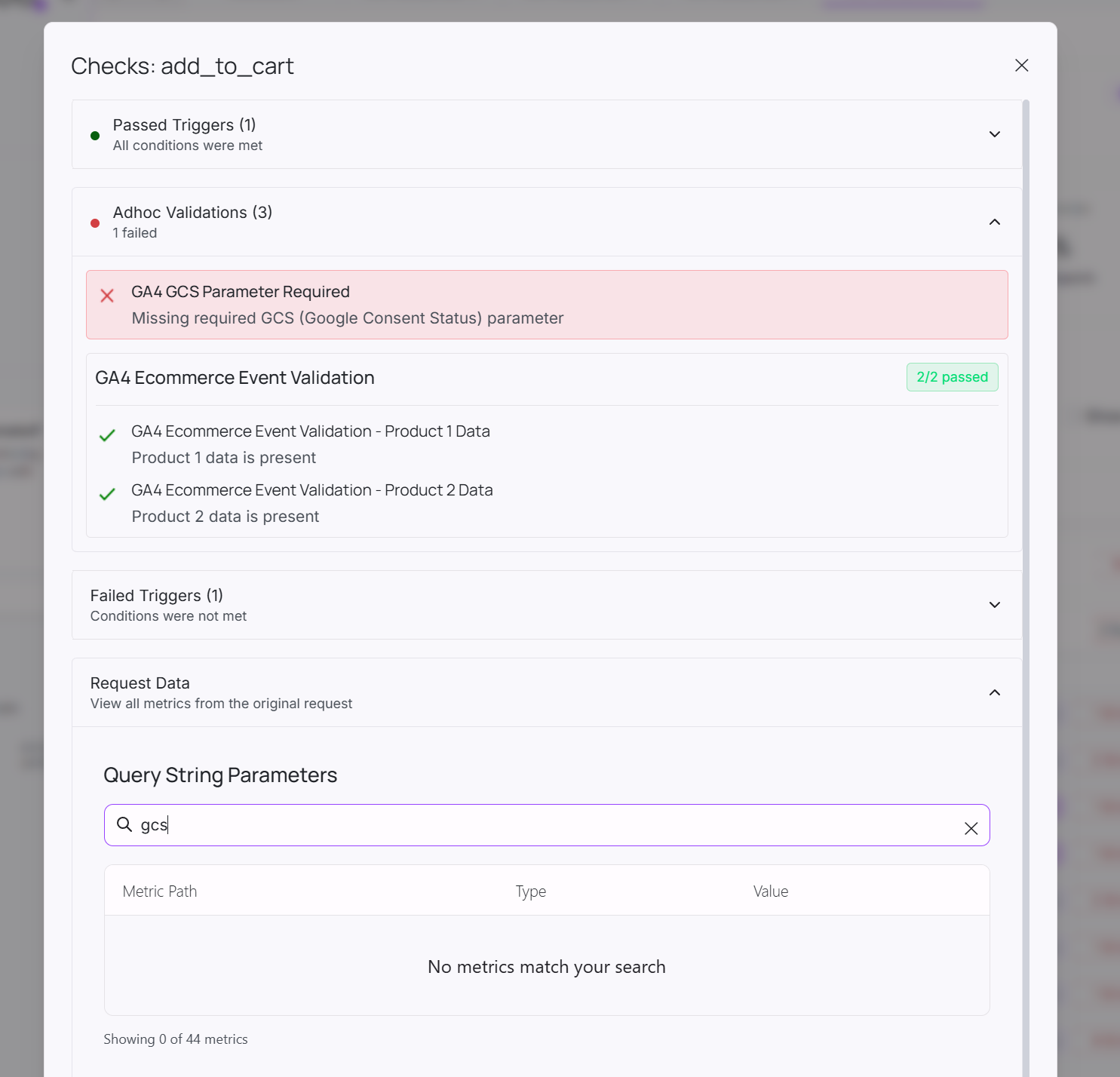
With AssertionHub, you can automate this process and ensure that your GA4 and Google Ads tracking remains GDPR compliant over time. Want to try yourself? Start AssertionHub free trial!
Common GDPR Compliance Mistakes
Things I’ve seen break GDPR compliance:
- Cookie banner loads after GA4 fires the first page_view
- Consent state not updating when user changes preferences
- Custom events hardcoded to fire regardless of consent
- Wrong consent mode default settings in GTM
- Testing only on desktop, missing mobile issues
Frequently Asked Questions
What does GDPR compliance mean for GA4 and Google Ads tracking?
What is the gcs parameter and why is it important?
gcs parameter in GA4 and Google Ads indicates the consent status. It shows whether users have granted or denied consent for analytics and marketing. Values like G100 (all denied), G101 (analytics granted), G110 (marketing granted), or G111 (all granted) tell you exactly what consent state is active.How do I manually test GDPR compliance for my tracking?
(1) No tracking fires before interacting with the cookie banner,
(2) No tracking (or only consent-safe events that fire with gcs set to G100) fires after clicking Deny,
(3) Full tracking fires after clicking Accept. You can verify this in your browser's Network tab or using debugging extensions like AH Debugger.
What's the difference between Consent Mode v1 and v2?
ad_user_data and ad_personalization. These provide more granular control over how user data is used for ads. Both versions use the gcs parameter to indicate consent status, making it a reliable indicator for compliance testing.Can I have GDPR-compliant GA4 events before consent?
Do I need to test GDPR compliance after every website update?
What happens if my tracking isn't GDPR compliant?
How does automated testing help with GDPR compliance?
gcs parameters match expected values for each consent scenario (before consent, after deny, after accept). It catches misconfigurations immediately, tests all events (not just page_view), and ensures compliance remains intact after code changes or updates.